How to trim unwanted characters from beginning and end of filename
Case: Your filenames have unwanted characters at the beginning or end, such as spaces, dashes, underscores, or periods.
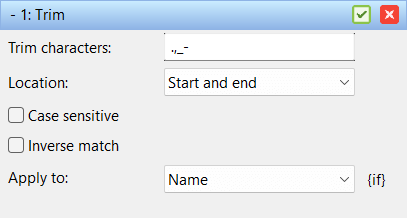
The Trim method removes selected characters only from the start and end of the filename. This is useful when downloaded or generated filenames contain extra separators, but you want to keep the rest of the name unchanged.
For example, __ Holiday photo --.jpg can be changed to Holiday photo.jpg.
Do the following:
- Add the files to the list.
- If there are methods in the method list, click the Clear Methods toolbar button.
- Add the Trim method and configure it like this:
- Trim characters: type a space, followed by
-_. - Location: Start and end
- Case sensitive: Unchecked
- Apply To: Name
- Trim characters: type a space, followed by
- Verify the new names in the list and click Start Batch.
Change the Trim characters field to match the characters you want to remove. If you only want to remove characters from one side of the filename, change Location to Start or End.