How to change file timestamps
Case: I have files where the created, modified, or accessed date is wrong, and I want Advanced Renamer to update the file timestamps.
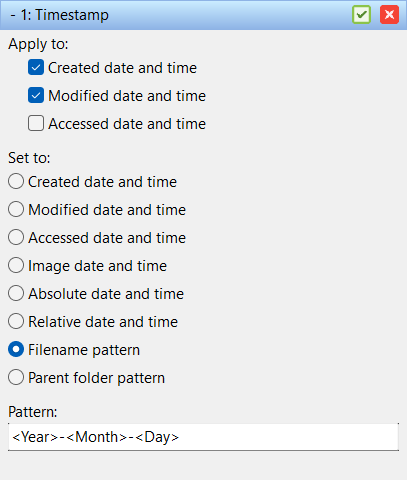
The Timestamp method changes the date and time values stored by the file system. This can be useful when photos, documents, or other files have been copied, downloaded, or restored with the wrong file date.
Note, the Timestamp method only changes file level timestamps, such as Created, Modified, and Accessed. It does not change metadata stored inside the file, such as EXIF date taken in photos or media creation dates embedded in video files.
Do the following:
- Add the files to the list.
- If there are methods in the method list click the Clear Methods toolbar button.
- Add the Timestamp method.
- In Apply to, select which file timestamps you want to change:
- Created date and time
- Modified date and time
- Accessed date and time
- Choose how the new timestamp should be found:
- Use Image date and time to copy the EXIF date taken value from image files to the file timestamp.
- Use Absolute date and time to set all selected files to a specific date and time.
- Use Delta date and time to add or subtract time from the current file timestamp.
- Use Filename pattern or Parent folder pattern if the date is part of the file or folder name.
- Use Metadata field to copy a recognized metadata value to the file timestamp.
- Verify the timestamp values in the list and click Start Batch.
Example: If your filenames contain a date like Holiday 2024-07-15.jpg, enable Filename pattern and use <Year>-<Month>-<Day>. Advanced Renamer will read the date from the filename and apply it to the selected file timestamps.
If you want to add a timestamp to the filename instead of changing the file timestamp, use date and time tags in a renaming method. See How to add date and time to filenames.